
Universal Peripheral Toolset
tl/dr – Unique trackball button combinations used in tandem with unique modifier key options to create exponential matrix of assignable functions. This facilitates triggering without need to go back and forth between keyboard and trackball. Promotes efficiency and consistency in apps requiring extensive mouse/trackball usage. All functions organized in system by categories and logical button layouts for muscle memory recall. Related, same, or similar functions unified across different apps via universal triggers, simplifying usage.
Core Details
The system described here is designed around the following concepts and functions…
- Efficient Peripheral Use
- Organization of Functions
- Universal App Shortcuts
Efficient Peripheral Use
Going back and forth between the trackball, trackpad or mouse and the keyboard takes time and is often subject to incorrect key presses. Keeping my right hand on the trackball as much as possible is one of the primary goals of this project. Graphics applications are most obvious to take advantage of this system, but most other apps can also benefit. When doing edits of large text compositions, using the trackball with these additional features is surprisingly fast and I constantly discover new ways to incorporate new functions into the system on a regular basis.
So this is very much an ongoing project and much of the planning includes flexibility for future functionality. The current state includes preparation for a major upgrade that triples the number of possible functions in addition to creating better organization of them. Substantial changes to back-end workflows also allow for future upgrades and features.
Organization of Functions
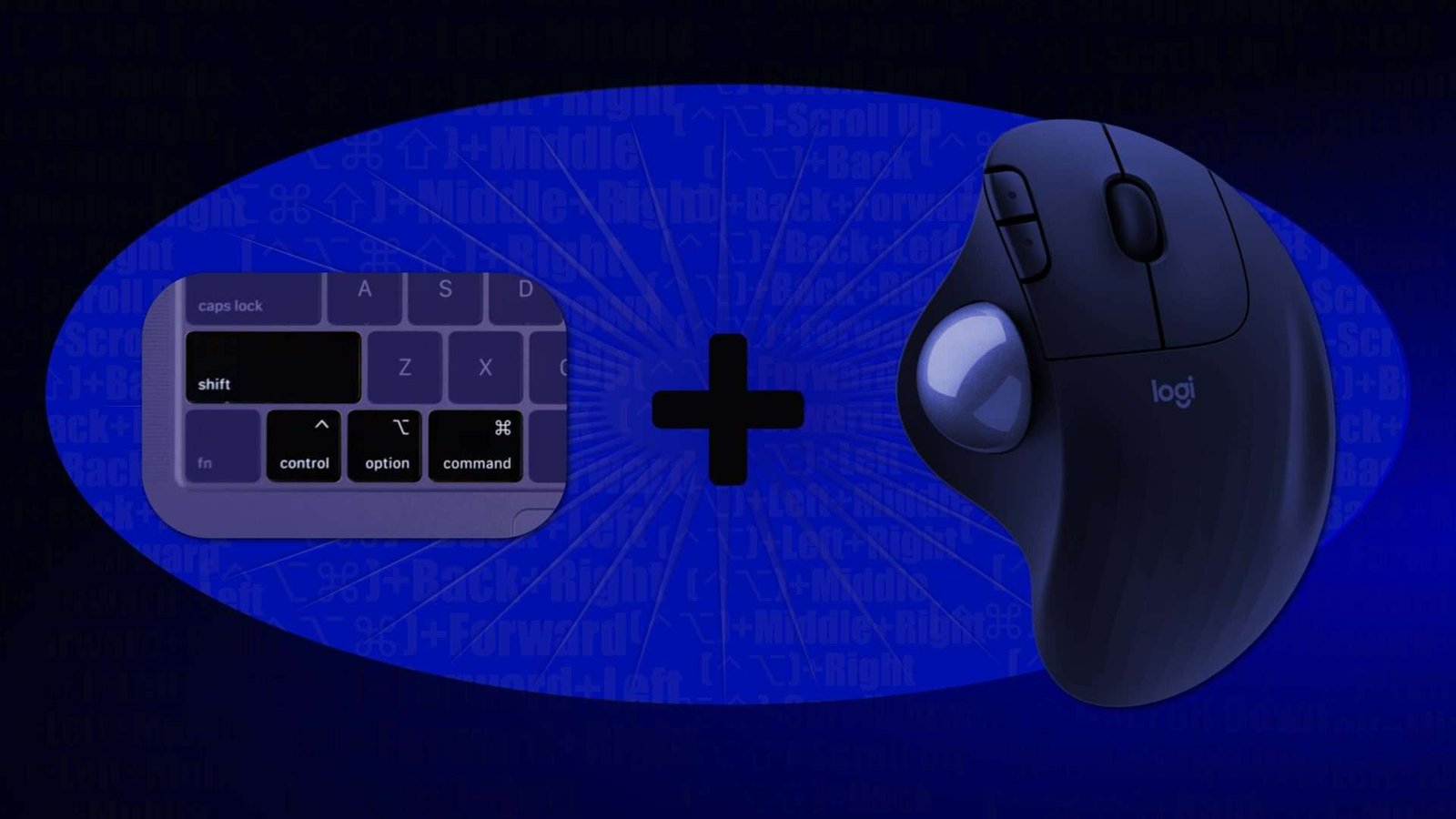
At the core of this project is the duplication of keyboard shortcuts (that often require both hands) to a single hand on keyboard modifier keys and the other hand using the trackball’s button combinations.
The specifics start with (as a right-handed person) my left hand on the four modifier keys: Control, Option, Command, and Shift. These can be used in various combinations as such:
- Control
- Option
- Command
- Control + Option
- Control + Command
- Option + Command
- Control + Option + Command
Now we can add the Shift key to double these options for a total of 14 different possible combos and if we then consider using the Shift key by itself and NO modifiers it’s a total of 16.
Keyboard Modifier Keys
So what is the point of these modifier combos? Think of how each app has different drop-down menus categorized by function. If the goal is to replace regular keyboard shortcuts or menu choices with a pointer-centric option, we can use these different button combos for different functions. More specifically, we could theoretically have 16 different category options, but that’s a lot to remember and is overkill. So I keep it limited to the most prevalent menu concepts across all apps. They often use different terms for their menu options, so the goal is to consolidate based upon functionality and not worry about exact menu matches. Again, it’s about the functions. For example, if one app has a “Layers” menu and another uses “Objects” but they each have sub-menu “Group” and “Ungroup” shortcuts, those can be brought together under just one category title.
After reviewing all of my primary apps, the choice of categories amalgamated down to the following:
- System
- Edit
- Format
- Design
- Organize
- View
- Window
- File
That’s eight categories (or menus) that can be represented by the following modifier key combos:
- no modifier (System)
- Control (Edit)
- Option (Format)
- Command (Design)
- Control + Command (Organize)
- Control + Option (View)
- Option + Command (Window)
- Control + Option + Command (File)
In addition to each of those above, the Shift key can be added to extend the number of options for a second tier of each category.
The Trackball is the Trigger
So those are the modifier possibilities. However, they can’t do anything on their own as their entire purpose is to modify an existing trigger. This is where the cursor peripheral enters the scene. The mouse or trackball buttons are the triggers and most devices contain at least the following:
- Left Click
- Middle Click
- Right Click
- Forward
- Back
Just like the modifier keys, the concept of button combinations exists with certain peripheral drivers. In this case, SteerMouse from PlentyCom is used for managing a Logitech M575 trackball. And as an example of “chording”, the Back and Forward buttons can be pressed at the same time to create a third function option. So combined with the various modifier keys, we’re creating a more extensive system. A few options aren’t possible if they already use combinations like Command+Left Click (which in macOS web browsers opens a web link in a new tab). So after eliminating the reserved key/click combos we can expand the mix, creating a matrix of possibilities. Each modifier category can now have a maximum of the following button combos:
- Modifiers+Back
- Modifiers+Back+Forward
- Modifiers+Back+Left
- Modifiers+Back+Right
- Modifiers+Forward
- Modifiers+Forward+Left
- Modifiers+Forward+Right
- Modifiers+Left
- Modifiers+Left+Middle
- Modifiers+Left+RightModifiers +
- Modifiers + +Middle
- Modifiers+Middle+Right
- Modifiers+Right
+Shift - Modifiers+Back
- Modifiers+Back+Forward
- Modifiers+Back+Left
- Modifiers+Back+Right
- Modifiers+Forward
- Modifiers+Forward+Left
- Modifiers+Forward+Right
- Modifiers+Left
- Modifiers+Left+Middle
- Modifiers+Left+Right
- Modifiers+Middle
- Modifiers+Middle+Right
- Modifiers+Right
How to Tame this Beast
Okay, so I had to admit to myself that this was getting a little insane. How could I possibly remember what each of these combinations do? By themselves, not a lot. But what if they have “relationships” with each other and groupings that make sense and give context? That might give my melting mind a fighting chance. But how will this work? Time to explore the possibilities.
I’d already been using the Back/Forward keys as a grouping and when viewed from above, their location on the trackball is a vertical layout with Forward above Back. The three mouse click buttons (L, M, R) are arranged horizontally. Bingo. The groupings can therefore be the following:
Three Function Group (vertical)
- Back
- Forward
- Back+Forward
- (+Shift for second tier options)
Six Function Group (horizontal)
- Left
- Middle
- Right
- Left+Middle
- Middle+Right
- Left+Right
- (+Shift for second tier options)
Two Function Groups
Three sets of two each (vertical)
- Forward+Left
- Back+Left
- Forward+Middle
- Back+Middle
- Forward+Right
- Back+Right
- (+Shift for second tier options)
This Can Actually Work
With these different types of groupings, it will be much easier to remember functionality because many will have relationships with each other and not just be single items. It is still a lot to remember, but having been using the simpler system for several months now, muscle memory does kick in and the more that items have relationships with each other, the easier it is to commit to memory.
This now is where the function review/assignment stage starts and once the choices are locked down, I can start the technical, back-end mapping that makes it all work together. AI has actuallybeen very helpful with this step by feeding a bunch of app menus into it and then having it assemble function matrixes to be edited down to the best options. I’ll have a separate article detailing all of that process as soon as I get to that phase.
Universal App Shortcuts
After all of that, the final element is executing the functions in the actual applications. Even with similar apps, they often have completely different keyboard shortcuts (or none at all) for the same or similar functions. This is where the macro software handles all these different options by recognizing which application is currently active and only executing the appropriate menu/shortcut choice for that app. This will also be addressed in detail in another article.
Wrapping up this stage, only the tip of the iceberg has been explored as the macro software is capable of far more than just keyboard shortcuts and menu activation. All kinds of sophisticated, multi-step functions can be created to automate all kinds of processes. I’ll also write about that in a separate article, but for now this is where this long description ends. If you actually read all the way to the end, CONGRATULATIONS and I hope that everything made sense and possibly even spawned some ideas of your own.